Tampilkan postingan dengan label Anti Virus. Tampilkan semua postingan

Minggu, 06 Januari 2013

Cara Ampuh Basmi Virus Dengan Kaspersky Rescue Disk 10


Kaspersky Rescue Disk 10.0.31.4 adalah solusi utama sekaligus alternatif bagi Anda yang memiliki masalah virus, trojan, atau malware di komputer Anda yang tidak dapat ditangani dengan baik oleh AntiVirus Anda. Dengan Kaspersky Rescue Disk 10 Anda dapat menghapus semua jenis virus, trojan, malware, dan worm dari komputer Anda tanpa merusak sistem Anda dan Kaspersky Rescue Disk 10 tidak akan ikut terinfeksi oleh virus seperti AntiVirus Anda yang sudah ikut terinfeksi virus.


Catatan: USB Flashdisk minimal 256 MB dalam format FAT32


  1. Restart komputer Anda
  2. Masuk ke BIOS dengan cara tekan F2 atau Delete (sesuaikan dengan model BIOS yang Anda gunakan)
  3. Atur booting pertama menjadi CD/ DVD drive atau USB Flashdisk, lalu simpan pengaturan BIOS Anda dan jangan lupa memasukan CD atau USB Flasdisk Kaspersky Rescue Disk 10 yang telah Anda buat
  4. Saat booting menggunakan Kaspersky Rescue Disk 10, tekan sembarang tombol untuk masuk ke menu Kaspersky Rescue Disk 10
  5. Pilih bahasa yang Anda mengerti (bahasa Indonesia belum ada )
  6. Lalu pilih Kaspersky Rescue Disk. Graphic Mode, setelah itu
    Kaspersky Rescue Disk 10 akan memeriksa model VGA Anda, bila terdapat pesan error artinya VGA Anda tidak mendukung
  7. Setelah pemeriksaan selesai, bagi yang tidak ada masalah akan tampil menu untuk melakukan scan dan update. Untuk yang VGA nya tidak support
  8. Pilih harddisk yang akan di scan, lalu pilih Start Objects Scan
  9. Tunggu hingga proses selesai
  10. Setelah selesai akan ada pembertitahuan, Merah = virus telah terjaring dan siap untuk di bumi hanguskan. Untuk menghapus virus tersebut, klik Neutralize All. Tapi jika Anda penasaran ingin tahu virus apa saja yang setia dengan komputer Anda, maka Anda pilih Details. Setelah Anda memilih
    Neutralize All maka virus-verus tersebut akan dihapus, tapi bila saat proses penghapusan terdapat pesan error artinya virus yang terinfeksi masuk ke karantina. Bila virus tersebut masuk dalam karantina Kaspersky Rescue Disk 10,maka Kaspersky Rescue Disk 10 akan membuat folder sendiri di C:\
  11. Laporan selesai. Jangan lupa kembali ke BIOS untuk mengatur booting awal Anda ke Harddisk.

Rabu, 25 Juli 2012

Cara Protect PC Dari Malware, Spyware, Adware

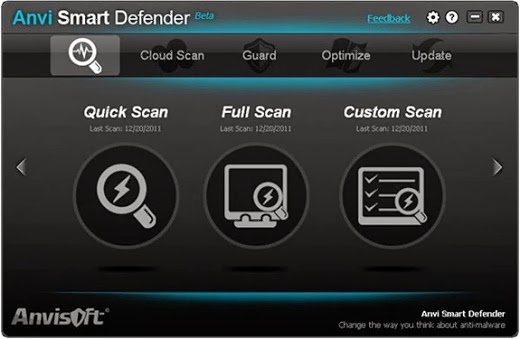
Cara Protect PC Dari Malware, Spyware, Adware - Malware, spyware dan adware merupakan hal yang berbahaya untuk PC anda karena mereka menginfeksi PC anda dan kemudian mencuri informasi penting yang tersimpan pada Windows. Maka anda memerlukan perlindungan untuk PC anda dari malwares, spywares, Trojans dan adware lainnya. Anvi Smart Defender adalah All in one freeware satu alat keamanan yang melindungi PC anda dari malwares. Anvi Smart Defender memberikan perlindungan pintar dan kuat terhadap perangkat lunak berbahaya, seperti virus, Trojans, adware, spyware, bots dan ancaman lainnya.
Smart defender Anvi Smart Defender   Protect PC dari Malwares, Adwares dan SpywaresAnvi Smart Defender Fitur :
  • Powerfull guard – Anvi Smart Defender mendeteksi dan menghentikan ancaman terbaru dan serangan paling berbahaya. Mengintegrasikan beberapa penjaga (Privacy Guard, Startup Guard, Process Guard, Behavior Guard, Files Guard), stop dan block malware.
  • Fast &Light Scan – Anvi Smart Defender dengan smart engine scan dan mendeteksi malware terbaru dalam cara yang cepat, ringan, dan efektif. Ini tidak akan mengganggu pekerjaan anda saat scaning, dan biarkan berjalan dalam background.
  • Innovative Cloud Computing Technology – Anvi Smart Defender mengadopsi teknologi komputasi awan kreatif untuk memberikan PC anda mendapatkan perlindungan lebih.
  • Menambahkan Perawatan PC – Selain melindungi PC anda dari malware, Anvi Smart Defender mengoptimalkan komputer anda dalam beberapa aspek (System Optimize, Registry Fix, Privacy Cleaner, Memory Sweep, and Disk Defragment).
Smart defender 1 Anvi Smart Defender   Protect PC dari Malwares, Adwares dan Spywares
Selain hal diatas Anvi Smart Defender juga menawarkan perlindungan real time yang mencakup privacy guard, startup guard, process guard, process guard, behaviour guard and files guard.

 Download Anvi Smart Defender

Sumber : http://zamrudblog.blogspot.com/2012/07/cara-protect-pc-dari-malware-spyware.html#ixzz21dd0xsJC

Senin, 09 Juli 2012

Security Shield 2012 Removal Instructions

Security Shield 2012 is a malicious software that will display fake alerts, claiming malware has been detected on your computer.This security alerts are professional looking pop-ups and when you click on them, you’re advised to buy Security Shield 2012 in order to remove the detected threats.
In reality, none of the reported issues are real, and are only used to scare you into buying Security Shield 2012 and stealing your personal financial information.
If you’ve got a Security Shield 2012 infection , you’ll be seeing this screens :

Registration codes for Security Shield 2012

Sebagai langkah opsional, Anda dapat menggunakan salah satu kunci lisensi berikut untuk mendaftar keamanan perisai 2012 dan berhenti tanda palsu.
64C665BE-4DE7-423B-A6B6-BC0172B25DF2
Harap diingat bahwa memasukkan kode registrasi di atas tidak akan menghapus 2012 Shield Keamanan dari komputer Anda, bukan itu hanya akan berhenti tanda palsu sehingga Anda akan mampu menyelesaikan panduan penghapusan lebih mudah.
We strongly advise you to follow our Security Shield 2012 removal guide and ignore any alerts that this malicious software might generate.Under no circumstance should you buy this rogue security software as this could lead to identity theft.

Removal guide for Security Shield 2012

STEP 1 : Start your computer in Safe Mode with Networking

  1. Remove all floppy disks, CDs, and DVDs from your computer, and then restart your computer.
  2. Press and hold the F8 key as your computer restarts.Please keep in mind that you need to press the F8 key before the Windows start-up logo appears.
  3. On the Advanced Boot Options screen, use the arrow keys to highlight Safe Mode with Networking , and then press ENTER.
  4. Log on to your computer with a user account that has administrator rights

STEP 2: Remove Security Shield 2012 malicious proxy server

Security Shield 2012 may add a proxy server which prevents the user from accessing the internet,follow the below instructions to remove the proxy.

  1. Start Internet Explorer and if you are using Internet Explorer 9 ,click on the gear icon (Tools for Internet Explorer 8 users) ,then select Internet Options.
  2. Go to the tab Connections.At the bottom, click on LAN settings.
  3. Uncheck the option Use a proxy server for your LAN. This should remove the malicious proxy server and allow you to use the internet again.

If you are a Firefox users, go to Firefox(upper left corner) → Options → Advanced tab → Network → Settings → Select No Proxy

STEP 3: Run RKill to terminate known malware processes associated with Security Shield 2012.

RKill is a program that attempts to terminate any malicious processes associated with Security Shield 2012 ,so that your normal security software can then run and clean your computer of infections.

As RKill only terminates a program’s running process, and does not delete any files, after running it you should not reboot your computer as any malware processes that are configured to start automatically will just be started again.

  1. While your computer is in Safe Mode with Networking ,please download the latest official version of RKill.
  2. Double-click on the RKill iconin order to automatically attempt to stop any processes associated with Security Shield 2012.
  3. RKill will now start working in the background, please be patient while the program looks for various malware programs and tries to terminate them.
    IF you receive a message that RKill is an infection, that is a fake warning given by the rogue. As a possible solution we advise you to leave the warning on the screen and then try to run RKill again.Run RKill until the fake program is not visible but not more than ten times.
    IF you continue having problems running RKill, you can download the other renamed versions of RKill from here.
  4. When Rkill has completed its task, it will generate a log. You can then proceed with the rest of the guide.

WARNING: Do not reboot your computer after running RKill as the malware process will start again , preventing you from properly performing the next step.

STEP 4: Remove Security Shield 2012 malicious files with Malwarebytes Anti-Malware FREE

  1. Please download the latest official version of Malwarebytes Anti-Malware FREE.
  2. Install Malwarebytes’ Anti-Malware by double clicking on mbam-setup.
  3. When the installation begins, keep following the prompts in order to continue with the installation process. Do not make any changes to default settings and when the program has finished installing, make sure you leave both the Update Malwarebytes’ Anti-Malware and Launch Malwarebytes’ Anti-Malware checked. Then click on the Finishbutton. If Malwarebytes’ prompts you to reboot, please do not do so.
  4. Malwarebytes Anti-Malware will now start and you’ll be prompted to start a trial period , please select ‘Decline‘ as we just want to use the on-demand scanner.
  5. On the Scanner tab,please select Perform full scan and then click on the Scan button to start scanning your computer for any possible infections.
  6. Malwarebytes’ Anti-Malware will now start scanning your computer for Security Shield 2012 malicious files as shown below.
  7. When the scan is finished a message box will appear, click OK to continue.
  8. You will now be presented with a screen showing you the malware infections that Malwarebytes’ Anti-Malware has detected.Please note that the infections found may be different than what is shown in the image.Make sure that everything is Checked (ticked) and click on the Remove Selected button.
  9. Malwarebytes’ Anti-Malware will now start removing the malicious files.If during the removal process Malwarebytes will display a message stating that it needs to reboot, please allow this request.

STEP 5: Double check your system for any left over infections with HitmanPro

  1. This step can be performed in Normal Mode ,so please download the latest official version of HitmanPro.
  2. Double click on the previously downloaded file to start the HitmanPro installation.
    NOTE : If you have problems starting HitmanPro, use the “Force Breach” mode. Hold down the left CTRL-key when you start HitmanPro and all non-essential processes are terminated, including the malware process. (How to start HitmanPro in Force Breach mode – Video)
  3. Click on Next to install HitmanPro on your system.
  4. The setup screen is displayed, from which you can decide whether you wish to install HitmanPro on your machine or just perform a one-time scan, select a option then click on Next to start a system scan.
  5. HitmanPro will start scanning your system for malicious files. Depending on the the size of your hard drive, and the performance of your computer, this step will take several minutes.
  6. Once the scan is complete,a screen displaying all the malicious files that the program found will be shown as seen in the image below.After reviewing each malicious object click Next.
  7. Click Activate free license to start the free 30 days trial and remove the malicious files.
  8. HitmanPro will now start removing the infected objects, and in some instances, may suggest a reboot in order to completely remove the malware from your system. In this scenario, always confirm the reboot action to be on the safe side.

STEP 6: Remove the residual damage from Security Shield 2012

Security Shield 2012 may also modify your HOSTS file default settings, which can cause browser redirects or errors while trying to access antivirus and security websites.

To protect itself, Security Shield 2012 has changed the permissions of the HOSTS file so you can’t edit or delete it.

  1. Please download the following batch fileto revert your HOSTS file permissions:
    Download hostfix.bat (Size: 134 bytes)
  2. Click on hostfix.bat and allow this file to run.Once it starts you will see a small black window that opens and then quickly goes away, then you should be able access your HOSTS file.
  3. Please download and run the below file from Microsoft to revert your host file to its original settings.Please note that if you have added custom entries to your HOSTS file then you will need to add them again after restoring the default HOSTS file.

If you are still experiencing problems while trying to remove Security Shield 2012 from your machine, please start a new thread in our Malware Removal Assistance forum.

What’s next? Join our amazing community and build up your malware defenses !

Filed Under: Remove malware Tagged With: Delete Security Shield 2012, How to remove Security Shield 2012, Remove Security Shield 2012, Security Shield 2012, Security Shield 2012 serial key, Uninstall Security Shield 2012

Senin, 11 Juni 2012

Cara Menghapus Virus Ramnit (shortcut & recycler)


Pada post kali ini saya akan menshare bagaimana cara menghilangkan virus ramnit dari komputer. Ngomong - ngomong sobat tau virus ramnit gak? Sedikit penjelasan dari ane: Virus ini dapat dikatakan Berbahaya. Mengapa? Karena virus ini biasanya menyerang Ram. Jadi kerja komputer sobat jadi lambat karena adanya virus ini. Virus ini juga sangat mudah menyerang Flashdisk sobat. Kalau tidak salah ada autorun.inf atau ada file yang bernama shortcut. Bagaimana? sobat sudah mengerti kan. Sekarang ane akan menjelaskan bagaimana Cara menghilangkan virus ramnit dari komputer. Berikut Cara menghilangkan virus ramnit dari komputer:

1. Waktu komputer saya terkena virus ramnit, saya menggunakan program Ramnitkiller.exe yang dibuat oleh PCMAV

2. Download programnya DISINI

3. Jika sudah mendownloadnya, buat komputer dalam keadaan Safe Mode

4. Caranya restart komputer sobat tekan F8 sebelum logo Windows keluar (kalau komputer saya sih pencetnya F8), kemudian cari Safe Mode dan klik itu

5. Selanjutnya, tunggu hingga proses booting selesai

6. Buka program yang sudah sobat download taid (Ramnitkiller nya)

7. Klik Scan & Clean tunggu hingga proses scanning selesai

8. Sobat dilarang membuka program lain (Biarkan saja komputernya)

9. Jika proses Scanning selesai Restart ulang komputer sobat

10. Ucapkan Selamat Tinggal kepada Ramnit :D

Selesai Dehh!!! Bagaimana? Ramnitnya sudah hilang? Syukur lah? Semoga Artikel Ini Bermanfaat Bagi kita semua. Amiin.. :D


Mengenali Virus Ramnit

Ramnit virus merupakan virus yang banyak beredar di indonesia. Virus ini dapat menyebar dengan cepat dan mampu bekerja sama dengan virus lain untuk menginfeksi korbanya.  Setelah terinfeksi komputer akan mendowload varian virus lainya dan setiap komputer mendownload varian virus yang berbeda. Meskipun sudah banyak artikel yang membahas tentang cara menghapus dan pencegahanya tapi masih ada saja korbanya.  Bagi anda yang komputernya bermasalah dengan virus ini berikut adalah cara untuk mencegah dan menghapus virus ramnit yang saya kumpulkan dari berbagai macam sumber (maaf kalo tidak saya cantumkan satu persatu). Semoga cara ini berhasil untuk mengatasinya.

Ciri-Ciri Virus Ramnit :

  1. Virus yang menginjeksi file *.html , *.exe dan *.dll
  2. Virus ini akan membuat browser menampilkan halaman yang berisi penawaran iklan, permainan, dan gambar pornografi secara terus menerus selama komputer terkoneksi internet.
  3. Gejala selanjutnya adalah, icon removable media berubah menjadi folder. Setelah itu pengguna tidak dapat mengakses flash dengan peringatan Akses ditolak. Selanjutnya muncul pesan Compressed (zipped.
  4. Muncul banyak catatan Copy catatan nama dari ‘Shortcut untuk (1). Lnk” s/d ‘Copy Shortcut ke (4). Lnk’ didalam Flashdisk. File shortcut tersebut digunakan virus untuk menggandakan dirinya ketika di jalankan.
  5. Virus ini menular melalui removable disk ( UFD ) dengan cara mengcopy file .cpl dan .exe yang selalu bertambah dan berubah-ubah namanya.Yang tepatnya file tersebut berada di dalam folder Recycler… dan 4 file shortcut copy of yang akan menjalankan file *.cpl infektor yang terdapat di folder recycler UFD.
  6. Bila Virus tersebut telah meng-infeksi system komputer , virus tersebut akan membuat dan menjalankan file svchost.exe yang akan melakukan berbagai hal: (a). membuat file bernama : watermark.exe yang bertempat di folder : C:\programfiles\mikrosoft\watermark.exe. (b). merubah registry userinit.exe mejadi menjalankan : watermark.exe , sehingga virus tersebut menguasai sistem secara permanen , dengan cara menginfeksi file berekstensi *.exe , *.dll dan *.html
  7. Jika di properties , UFD akan terlihat banyak terpakai oleh file .cpl dan .exe di folder recycler.

Efek Virus Ramnit :

  1. Virus ramnit akan membuat file program tidak berjalan dengan normal , misalnya: mozilla firefox , winamp dll.
  2. Tidak bisa menghapus file watermark.exe yang ada difolder c:\programfiles\microsoft\watermark.exe , dikarenakan file tersebut dikunci oleh file svchost.exe-nya virus ramnit.
  3. Bila kita hapus file / folder yang ada didalam folder recycler UFD , file .cpl dan .exe akan muncul kembali. dan terus menulis kembali.
  4. Untuk system yang telah terinfeksi file tertentu misalnya : explorer.exe akan digantikan explorermgr.exe
  5. Bila kita membersihkan virus ini tidak tuntas ( ada yang belum dibersihkan ) , Virus ini akan kembali bila kita menjalankan  aplikasi (misalnya : klik kanan ).

Cara Membersihkannya:

  1. Download anti virus PCMAV Express Cleaner Disini atau Disana
  2. Simpan file yang telah di download ke direktori mana saja (yg tipenya zip jgn lupa di ekstrak)
  3. Restrat komputernya dan booting dengan save mode caranya tekan F8 samapai muncul menu booting
  4. Buka file yang telah didownload dan jalankan
  5. Tunggu sampai proses selesai kemudian restart

Antisipasi Virus Ramnit :

  1. Matikan autorun.inf windows  caranya dengan menggunakan run > gpedit.msc > Cumputer Configuration > Administrative template > System > Turn off Autoplay > Enable  (alldrive).
  2. Rubah beberapa ektensi file yang berpotensi digunakan oleh virus dengan assosiasi file ( misalnya: assoc .vbs=txtfile ) terutama untuk Virus ramnit adalah ekstensi .cpl
  3. Hapus selalu folder recycler didalam UFD , bila tidak bisa ada kemungkinan komputer kita terinfeksi Virus. Caranya hapus dengan menggunakan mini windows Xp ( hiren BOOt CD ) atau system berbasis linux , folder recycler dan _restore yang ada di folder systeminformation.
  4. Install Anti virus dan selalu Update database terbaru.

LinkWithin

Related Posts Plugin for WordPress, Blogger...